 |
We've created an online tutorial on building cover letter templates. You can view it by clicking the link below. |
If you know how to use a mouse, you have fulfilled the prerequisites for building a cover letter template in JobTabs. To access cover letters use the following selections from the Jobs tab, Jobs » Cover Letters menu,
| Icon | Description |
 |
Add a new cover letter |
 |
Edit an existing cover letter |
 |
Delete a cover letter |
Let's look at the cover letter template builder in JobTabs,
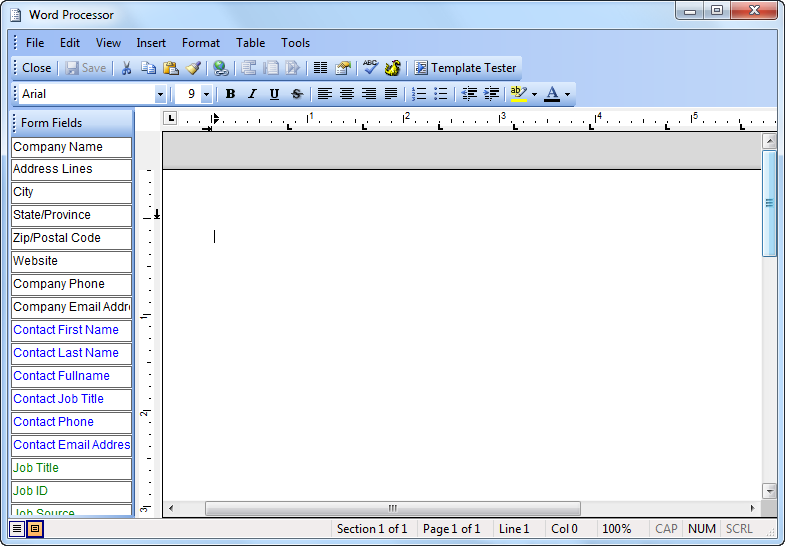
It is a standard word processor with a column of fields on the left hand side. The fields have different colors to differentiate them by association. Company related fields are all in black. Contact related fields are blue. Fields related to the job details are in green, etc. The fields work exactly the same way, regardless of which color they are.
Each field represents the data it will hold when you apply to a job. So if you apply to a job you found on monster.com, every place where the field [Job Source] is located, monster.com will show.
To create your cover letter template, type the cover letter first and then drop the fields onto the body of the text. An example of what a cover letter might look like after you have dropped a few fields is shown below.
|
John Cole 1414 Adams Lake Blvd. Atlanta, GA 30339
[Current Date]
[Company Name] [Address Lines] [City], [State] [Zip]
ATTN: [Contact Fullname] REF: [Job ID]
Dear [Contact First Name], . . . . |
There are more comprehensive examples included with JobTabs. To view them, click 'Edit Cover Letter' and you can see how each of them was designed.
A few guidelines,
- Fields can be formatted much like text. If you select a field and apply bold formatting, that field will show up bold in the cover letter.
- Think of fields as objects, similar to a graphic. If you selected a picture and hit the DEL key it would be deleted. The same approach applies to fields.
- It is easier to delete an existing field and add a new one somewhere else than it is is to modify a field.
- To change the formatting for the date, go to the Options menu and select Cover Letter Date format.
© 2005 - 2012 by JobTabs, LLC. All rights reserved.