 |
JobTabs Job Search & Resume Builder 2013 | Submit feedback on this topic |
Glossary Item Box
|
JobTabs Job Search & Resume Builder 2013 | Submit feedback on this topic |
Activities are added, edited and deleted via the toolbar as shown below.

The activity screen is illustrated below for a new activity,
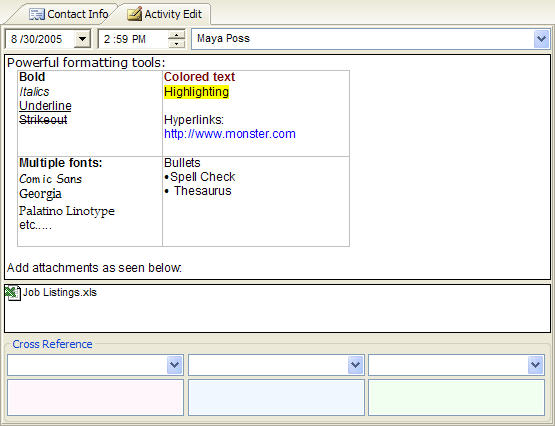
Activity screens are the same across all entities as far as logging discussions and sending email. While the intensity of the graphic suggests that activities are complicated operations they are not. The creation and management of activities is very simple. It is what happens behind the scenes that makes them powerful.
 toolbar button to open the activity screen.
 |
As a shortcut, you can edit an existing activity by double clicking the activity in the activities list. |
It is that simple. What makes activities so powerful is their ability to manage information both on your desktop and across the internet.
 |
Because the editor toolbar applies to all tabs with the exception of Reports, all of the functionality it provides is available to any activity. To take advantage of the robust features provided by the editor toolbar, take a moment to review it in this help file. |
| See Also |
JobTabs Editor: Editor Toolbar | Hyperlinks | Attaching a Resume | Attaching a File
© 2005 - 2012 by JobTabs, LLC. All rights reserved.